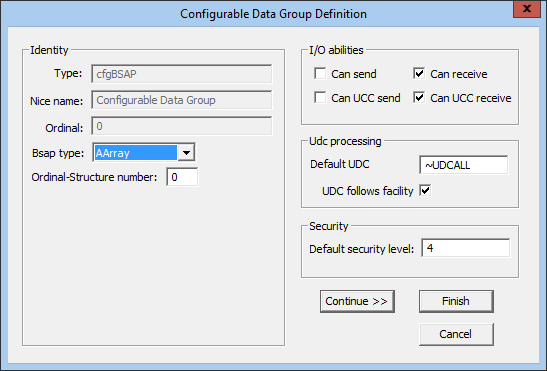
The BSAP EIE offers the ability to add data groups on an ad hoc basis to a device instance without configuring them first in the device template file. This functionality is handled through the "Configurable Data Group" (cfgBSAP) data group. Any number of device-level data groups can be added. This task is simplified if you have loaded one or more ACCOL Load Files into the device. Otherwise, the edit mode will be limited.
Note: The data group type name of cfgBSAP cannot be changed by the user.
Three signal-related data group types can be configured using the "Configurable Data Group" (cfgBSAP) data group.
For more information about these and other data groups, see Data Groups.
See the following subsections below for more information:
To Configure a Signal-Related Configurable Data Group
| Property | Description |
|---|---|
|
Type |
The field pre-populates with the cfgBSAP data group. |
|
Nice name |
The field pre-populates with Configurable Data Group and cannot be changed. |
|
Ordinal |
Ordinal pre-populates based on the sequence in which the data group is being added. |
|
Bsap type |
The data group type. |
|
Ordinal-Structure number |
For List data group types, defines the source of the list in the Ordinal-Structure Number field. |
|
I/O abilities |
Check to enable the data group read/write options:
|
|
UDC processing |
Default UDC — the name of the UDC category used by default when mapping UDCs to data group elements. Default is "~UDCALL". UDC follows facility — when selected, the UDC mapping follows the facility assigned to the data group. |
|
Security |
Default security level — The security level for the data group. Level 4 is the default. |


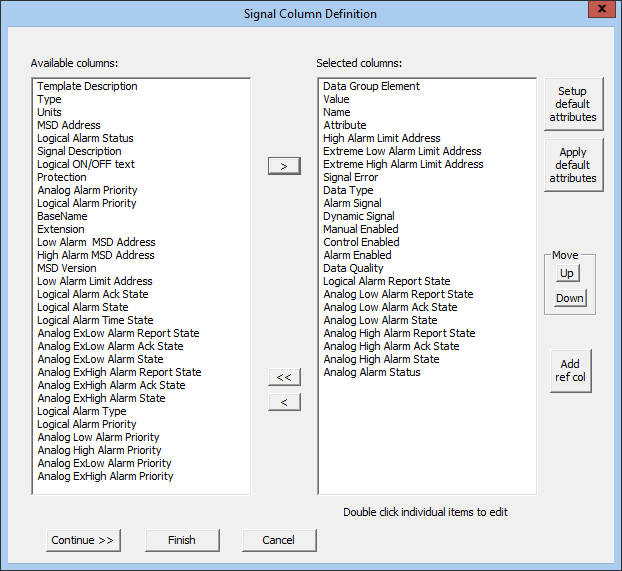
The Signal Column Definition dialog box defines the columns of data to be included in List, Search, and Signal data group types. The order in which they are listed in the Selected columns field are the order in which they are displayed, left to right, in the data group's View Data dialog box.
If you want to map a UDC for a value, you must add the Value column to the selected list. By default, a UDC is mapped to the Value column. You can map to other columns by using a Column Item. Refer to the Signal Item Definition section for more information on adding column items.
| Property | Description |
|---|---|
|
Available columns |
The data elements available for display. The list is derived from the BSAP protocol. Whether or not an item has a value may be dependent upon the configuration of the device. |
|
Selected columns |
The data elements that have been selected for display. |
|
Setup default attributes |
Provides a method to define default display attributes for columns in the Signal Column Attributes dialog box. |
|
Apply default attributes |
Applies the default attributes defined in the Signal Column Attributes dialog box to all selected columns. Note: Default attributes take precedence over attributes defined for a particular column. As such, you should edit/apply the default attributes for all columns before configuring attributes for an individual column. |
|
Add ref col |
Allows the creation of additional columns that derive their value from one of the underlying columns (Format 2 in Data Group Elements). Valid characters (maximum of 10 characters) are A-Z, 0-9, dash (-), and underscore (_). Cannot contain spaces and must start with an alpha character. |
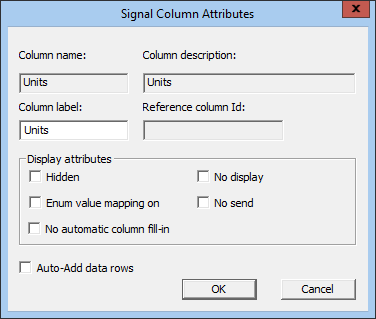
The Signal Column Attribute dialog box defines attributes specific to the selected column. Additionally, you can define and apply default display attributes to selected columns.
| Attribute | Description |
|---|---|
|
Column name |
The field pre-populates with the name of the column and cannot be edited. |
|
Column description |
The field pre-populates with the description of the column and cannot be edited. |
|
Column label |
A label for the column in the data group's View Data dialog box. If blank, the Column name is used. |
|
Reference column Id |
The name of the source column if the column is a reference column. Although not enforced, it is expected that derived columns refer to either the Value column or one of the bit columns (ME, CE, AE, or OKData). If the data group supports write operations, it is required that one of the derived columns be write-enabled. |
|
Auto-add data rows |
When you add a signal it will auto-add that column as a separate DEID using the column-row syntax. |
| Display attributes | |
|
Hidden |
If set, the column is hidden in the data group's View Data dialog box by default. You can toggle display of the column using the Show all option. |
|
If set, the displayed value (Val) will be converted to a string enumeration using the true/false values derived from the SLog column. To enable this feature, the SLog column must be included in the column list. Applies only to Logical, ME, CE, AE, and OKData columns. |
|
|
No automatic column fill-in |
By default, columns specified in the columns section, but not mapped to a particular row and column, are retrieved, displayed, and updated, but are not available for point mapping and cannot be used in an update UIS command. Setting this option suppresses this behavior. |
|
No display |
If set, blocks display of the column in the data group's View Data dialog box. This attribute is commonly used for columns that serve as metadata only, such as SDesc and SLog. |
|
No send |
If set, blocks updates for a given column. The only columns to which this applies are Val, and the Inhibit/Enable and Quality bit fields (ME, CE, AE, and OKData). Cannot be used to enable updates for any other column. |
A column represents a field to retrieve and display for all signals in a data group. Column specifications are placed before the dgElements element in the device template file.
|
<DataGroup ... <Columns> <ColumnName [attributes] /> ... </Columns> <dgElements ... |
The table below lists the columns that can be added to a signal-related data group.
| Column name | Column description | Description |
|---|---|---|
|
deid |
Data Group Element |
Identifies the data in the row. Column must be present for proper operation of signal dialog boxes. If not explicitly specified, it will be added automatically as the first column. It may be moved to a different position relative to the other columns if it is explicitly specified. It may not be marked as "Hidden" or "No Display". |
|
desc |
Template Description |
This column creates space in the column list for a data element ID (DEID) description. If an individual DEID does not have a description and the description column is specified, the column will be filled in from the description returned from the RTU. |
|
Type |
Type |
Type and Inhibit byte |
|
Val |
Value |
Value |
|
Units |
Units |
Units/logical text |
|
Addr |
MSD Address |
MSD address |
|
Name |
Name |
Signal name |
|
AAlmStat |
Analog Alarm Status |
Analog alarm status |
|
LAlmStat |
Logical Alarm Status |
Logical alarm status |
|
SDesc |
Signal Description |
Descriptor text |
|
SLog |
Logical ON/OFF text |
Logical ON/OFF text. The display text ("on/off," "true/false," etc.) for logical bits as defined per data item — usually set to "No Display" or "Hidden". See the Enum value mapping on attribute. |
|
Prot |
Protection |
Protection byte |
|
AAlmPri |
Analog Alarm Priority |
Analog alarm priority |
|
LAlmPri |
Logical Alarm Priority |
Logical alarm priority |
|
Base |
BaseName |
Base name |
|
Ext |
Extension |
Extension |
|
Attr |
Attribute |
Attribute |
|
LaAddr |
Low Alarm MSD Address |
Low alarm deadband MSD address |
|
HaAddr |
High Alarm MSD Address |
High alarm deadband MSD address |
|
Ver |
MSD Version |
MSD version number |
|
LalAddr |
Low Alarm Limit Address |
Low alarm limit MSD address |
|
HalAddr |
High Alarm Limit Address |
High alarm limit MSD address |
|
XLalAddr |
Extreme Low Alarm Limit Address |
Extreme low alarm limit MSD address |
|
XHalAddr |
Extreme High Alarm Limit Address |
Extreme high alarm limit MSD address |
|
SigErr |
Signal Error |
Signal error |
|
LARptState |
Logical Alarm Report State |
Logical alarm report state |
|
LAAckState |
Logical Alarm Ack State |
Logical alarm Ack state |
|
LAState |
Logical Alarm State |
Logical alarm state |
|
LATimeOk |
Logical Alarm Time State |
Logical alarm time state |
|
AALRptState |
Analog Low Alarm Report State |
Analog low alarm report state |
|
AALAckState |
Analog Low Alarm Ack State |
Analog low alarm Ack state |
|
AALState |
Analog Low Alarm State |
Analog low alarm state |
|
AAHRptState |
Analog High Alarm Report State |
Analog high alarm report state |
|
AAHackState |
Analog High Alarm Ack State |
Analog high alarm Ack state |
|
AAHState |
Analog High Alarm State |
Analog high alarm state |
|
AAXLRptState |
Analog ExLow Alarm Report State |
Analog ExLow alarm report state |
|
AAXLAckState |
Analog ExLow Alarm Ack State |
Analog ExLow alarm Ack state |
|
AAXLState |
Analog ExLow Alarm State |
Analog ExLow alarm state |
|
AAXHRptState |
Analog ExHigh Alarm Report State |
Analog ExHigh alarm report state |
|
AAXHAckState |
Analog ExHigh Alarm Ack State |
Analog ExHigh alarm Ack state |
|
AXHState |
Analog ExHigh Alarm State |
Analog ExHigh alarm state |
|
LAType |
Logical Alarm Type |
Logical alarm type |
|
LAPri |
Logical Alarm Priority |
Logical alarm priority |
|
AALPri |
Analog Low Alarm Priority |
Analog low alarm priority |
|
AAHPri |
Analog High Alarm Priority |
Analog high alarm priority |
|
AAXLPri |
Analog ExLow Alarm Priority |
Analog ExLow alarm priority |
|
AAXHPri |
Analog ExHigh Alarm Priority |
Analog ExHigh alarm priority |
| Columns added to Breakout Bits from the Type and Inhibit byte | ||
|
DataType |
Data Type |
Breakout bits from Type
|
|
AlrmSig |
Alarm Signal |
Alarm Signal/Not Alarm Signal |
|
DynSig |
Dynamic Signal |
Dynamic Signal/Constant Signal |
|
ME |
Manual Enabled |
Manual Inhibit/Enable |
|
CE |
Control Enabled |
Control Inhibit/Enable |
|
AE |
Alarm Enabled |
Alarm Inhibit/Enable |
|
OKData |
Data Quality |
Data Quality bit |
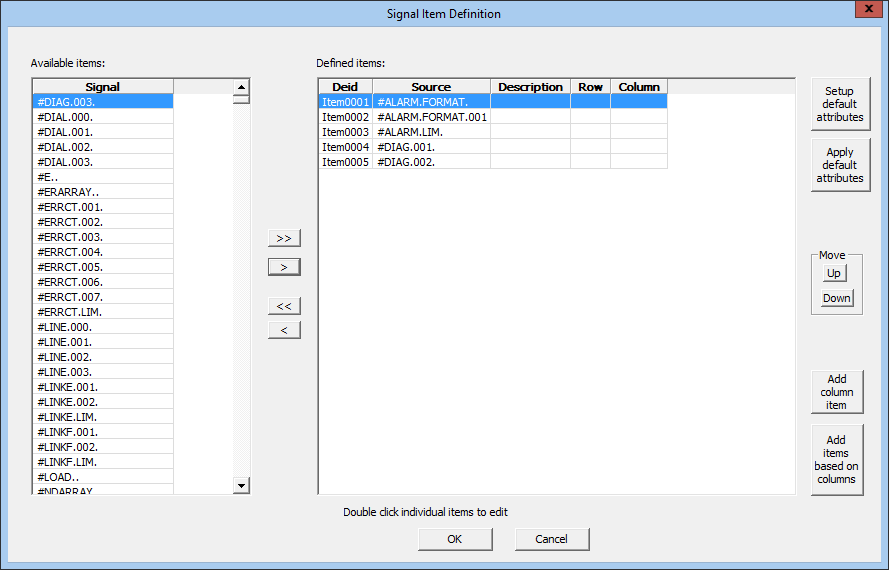
The Signal Item Definition dialog box defines the data group elements for the "Configurable Data Group" (cfgBSAP) data group. You can select any items from the ACCOL file for the data group’s type and structure(s). For example, if the data group represents a specific list, you can add any of the elements from that list. If the data group represents three lists, you can add any element from any of the three lists.
The elements are listed top to bottom in the data group's View Data dialog box in the order in which they are listed in the Defined items field of the Signal Item Definition dialog box.
| Property | Description |
|---|---|
|
Available items |
Items available in the ACCOL file for the type and structure(s) defined for the data group. Type and structure are defined in the Data Group Properties dialog box. |
|
Defined items |
The data group elements that have been selected for display. |
|
Setup default attributes |
Opens a dialog box that provides a method to define default display attributes for the data elements. |
|
Apply default attributes |
Applies the defined default attributes to all selected items. Note: Default attributes take precedence over attributes defined for a particular element. As such, you should edit/apply the default attributes for all elements before configuring attributes for an individual element. |
|
Add column item |
Allows the creation of an additional column item for mapping. By default, only the value can be mapped. |
|
Add items based on columns |
Used to map UDCs for point processing. |
For each selected element, you can define attributes specific to that element by double-clicking it and configuring the options described below. You can also define and apply default display attributes to selected elements. The Source, Signal name, Row, and Column fields cannot be edited.
Note: When Hidden, Enum value mapping, No send, and No send row are specified at the element level, the attribute settings override the corresponding elements at the column level. The Remove attribute option in the Display attributes section removes the attribute from the XML so that the element will always use the column level setting as a default.
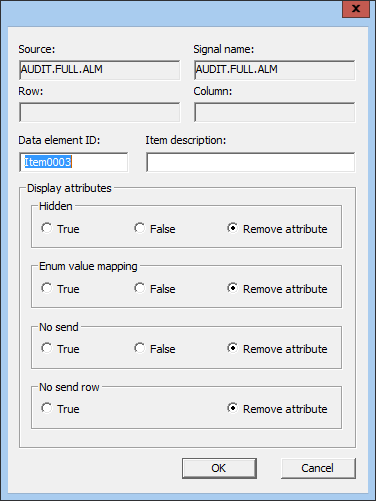
| Attribute | Description |
|---|---|
|
Data element ID |
The data element ID. Valid characters (maximum of 10 characters) are A-Z, 0-9, dash (-), and underscore (_). Cannot contain spaces and must start with an alpha character. |
|
Item description |
Description of the element. |
| Display attributes | |
|
Hidden |
If set, the column is hidden in the data group's View Data dialog box by default. You can toggle display of the column using the Show all option. |
|
Enum value mapping |
If set, the displayed value (Val) will be converted to a string enumeration using the true/false values derived from the SLog column. To enable this feature, the SLog column must be included in the column list. Applies only to Logical, ME, CE, AE, and OKData columns. |
|
No send |
If set, blocks updates for a given column. The only columns to which this applies are Value (Val), and the Inhibit/Enable and Quality bit fields (ME, CE, AE, and OKData). Cannot be used to enable updates for other columns. |
|
No send row |
Allows write operations to be blocked on a per row basis. |
Data items can be defined in one of two formats.
Format 1:
|
<deid desc=description src=source /> |
Format 1 is used for typical data items, where source is replaced with the source specifier for the data item. For List type data groups, this is the numerical ordinal number of the item in the list. For Signal type data groups, this is either the fully qualified signal name or the MSD address of the signal. Any UDC mapping for a data item in this format will point to its Value (Val) column by default.
Format 2:
|
<deid desc=description row=row col=col /> |
Format 2 is designed to point to a specific column of a data item defined in Format 1. Here, row is replaced with the name (DEID) of the row, and col is replaced with the name of the column. This format allows UDC mapping to data item attributes other than the value column.
The following true/false attributes can be added to a data item, and when used at the Data Group Element level will override the corresponding elements at the column level:
|
|
|

